In 2026, we keep seeing the same failure pattern when teams attempt ProRes 4444 and Alpha Channel Integration. They expect smooth, compositing-ready edges, then discover the alpha does not survive the pipeline, and the HUD graphics start looking blocky instead of clean.
Key Takeaways
- ProRes 4444 and Alpha Channel Integration works best when your toolchain treats alpha as a first-class channel, not an afterthought.
- Choose the right ProRes 4444 flavor for RGBA mastering-quality output when alpha depth matters.
- Confirm bit depth and transparency behavior before you commit to timelines and exports.
- Preview watermarked vs original watermark-free files like the site descriptions do, so you debug the pipeline, not the presentation.
- When your workflow has import or link steps, expect alpha to be enabled or ignored depending on settings.
- For seamless HUD motion, match timing, lighting, and frame edges, then validate the alpha channel again after your final transcode.
| What you’re doing | What to verify | Why it matters |
|---|---|---|
| ProRes 4444 + alpha import | Alpha enabled vs ignored | Determines whether transparency survives the edit step. |
| Transcode or handoff | Edge smoothing in alpha | Blocky edges usually mean alpha got ignored. |
| Seamless Loop delivery | First and last frame match | Prevents visible flicker at loop points in HUD worlds. |
| Playback testing | Preview vs original watermark-free export | You need the alpha test on the actual delivery file. |
A living HUD library lives or dies on Interfaces.
ProRes 4444 and Alpha Channel Integration is the difference between sharp HUD lines and broken edge logic after the handoff.
Understand what “alpha-ready” means in ProRes 4444 and Alpha Channel Integration
When we say ProRes 4444 and Alpha Channel Integration, we mean alpha is preserved as part of the deliverable, not rebuilt later from assumptions. Apple frames ProRes 4444 XQ as the highest-quality version for 4:4:4:4 sources, including alpha channels.
That is why we treat alpha fidelity like we treat color fidelity. If your transparency channel is reduced, ignored, or treated as a boolean mask, HUD overlays lose edge smoothing and start to look stepped.
Use ProRes 4444 XQ expectations for mastering-grade alpha
For compositing and UI-like graphics, the workflow target is “RGBA” behavior with high precision. In our testing mindset, we treat alpha depth as a production constraint. That matches how Apple describes ProRes 4444 XQ support for alpha fidelity.
Also, remember the bandwidth reality. Alpha-capable 4:4:4 footage in a high-quality ProRes profile costs storage and throughput. You plan that cost up front, or the pipeline starts buffering and you start guessing.
Pick the right source files and confirm your pipeline is testing the original delivery
We do not debug alpha using watermarked previews. A watermarked Full HD preview MP4 is useful for quick motion checks, but alpha validation must happen on the file that matters.
On our video pages, the descriptions are explicit: watermarked Full HD preview MP4 is for viewing, and the original download is watermark-free. Then, the archive delivery is framed as a proper production asset. That is the model you should apply to your own work: preview for timing, original for transparency.
Validate on real HUD content, not synthetic test files only
HUD worlds are edge-heavy. Radar rings, targeting reticles, and thin UI lines show alpha problems fast. For example, if you integrate alpha through a dashboard-like HUD source, you see immediately whether edge smoothing survived.
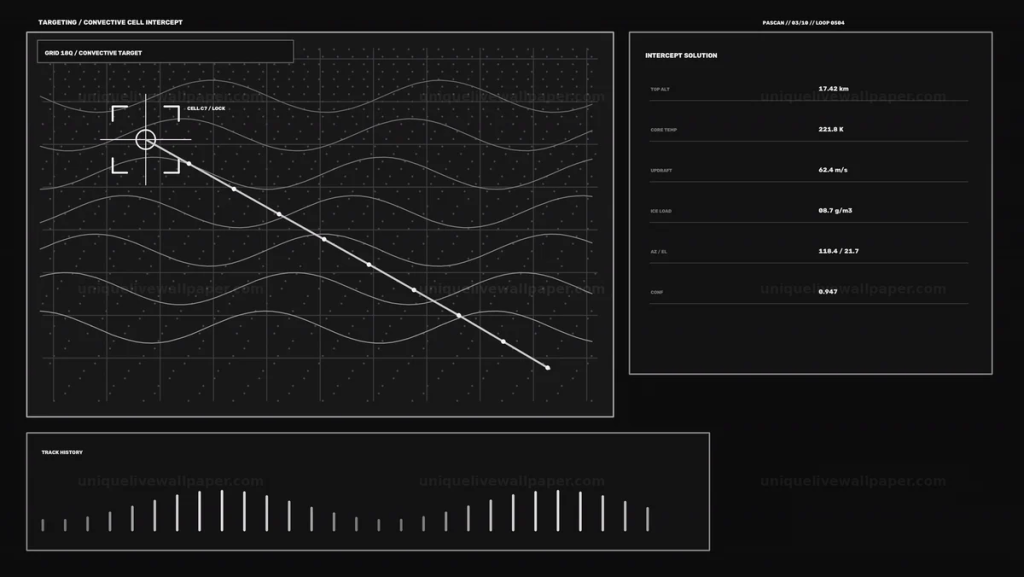
Use a radar-style asset like Planetary Atmosphere Scanner HUd as your alpha stress test. It has plenty of semi-transparent UI elements and moving tracking rings, which quickly exposes broken alpha logic.
ProRes 4444 and Alpha Channel Integration inside editing tools, imports, and links
This is where pipelines fail most often. Many editors support ProRes 4444 with alpha, but only if you import or link with alpha enabled. In practice, that means your setting choices decide whether you get Video+Alpha or Video+Audio.
Avid documents a key limitation: Media Composer cannot import or link ProRes 4444 with Video + Alpha + Audio in a single clip. Depending on settings, you get either Video+Alpha (no audio) or Video+Audio (no alpha).
So your integration recipe is not “make ProRes 4444 work.” It is “make the toolchain produce Video+Alpha, with alpha enabled.”
Tool setting checklist for ProRes 4444 and Alpha channel survival
- Set alpha to enabled (not ignored) when importing or linking.
- If audio must be preserved, route audio separately and validate alpha in a separate pass.
- After the import step, preview the edges with a high-contrast background. If edges look jagged, alpha was likely not carried.
- Re-check alpha after any proxy generation or transcode. Some workflows handle proxies differently.
When alpha breaks: diagnose “ignored alpha” vs “bad export”
Alpha problems can look similar even when the causes are different. In our field notes, the fastest signal is edge behavior. If edge smoothing that depends on alpha disappears, you are likely watching alpha get ignored.
DCP-o-matic bug tracking documents a concrete failure mode: when DOM is given a ProRes4444 file with alpha channel, DOM appears to ignore the alpha channel. The result is blocky graphics and text where smoothing of the edges relies on the alpha channel.
Test like a production operator
- Take a representative clip with semi-transparent elements (thin UI lines, reticle soft edges, radar ring glow).
- Export a short segment from your integration step, not the original file.
- Compare preview to output in your next system. DOM reports that the output in DCP is identical to the preview, which means your pipeline did not “fix” anything after the preview stage.
- Use a harsh matte behind the HUD. If alpha was carried correctly, edges stay smooth on hard backgrounds.
In 2026, teams get stuck by assuming the preview window is “truth.” The more reliable method is to validate on the delivered frames that will be composited later.
Export settings that protect ProRes 4444 and Alpha Channel Integration
After import, your next risk is transcode. Transcoding can change how channels are carried, and some pipelines treat alpha differently than color. We focus on keeping alpha intact end-to-end.
Practical export rules for alpha-heavy HUD interfaces
- Keep the alpha channel attached through your render pipeline. Do not separate alpha unless you plan to recombine with a tool that supports it correctly.
- Match frame rate and timing to your loop design. Alpha issues hide when the motion itself is broken, and vice versa.
- Validate on a loop boundary. Seamless HUD motion is sensitive to first/last frame mismatches, and those mismatches can masquerade as “alpha flicker.”
For a seamless loop, we use a strict concept: create an invisible video loop by matching motion, timing, lighting, and the first and last frames before export. Do that, then run alpha verification again.
Seamless Loop, Loop intelligence, and alpha edges in HUD worlds
Alpha integration is not only about transparency values. It is about stability across frames. If your alpha channel changes behavior at the loop point, the HUD reads as unstable even if the transparency is technically “present.”
That is why loop discipline matters. When we prepare HUD overlays for motion, we treat loop integrity as part of the alpha deliverable. Seamless motion and Alpha must both survive the pipeline.
Use HUD sources that are designed for edge visibility
Choose a HUD source with clear overlays. For navigation and targeting, edge density is high and motion is continuous. For example, the “tie-point map” style visuals in performance metrics data hud seamless loop give you lots of alpha-dependent elements to validate at both center and corners.
Use a source like this to verify that ProRes 4444 and Alpha Channel Integration does not introduce edge crawl at the transition between loop end and loop start.
Bandwidth planning for ProRes 4444 and Alpha Channel Integration in 2026
In 2026, many teams underestimate how quickly alpha-ready 4:4:4:4 footage saturates their storage or playback pipeline. Apple lists target data rates that help you budget for the asset class. If you ignore bandwidth planning, your playback becomes jittery. Then alpha debugging becomes guesswork.
Apple’s target data rate guidance for ProRes 4444 XQ is based on specific source dimensions and frame rate. If your pipeline is built for lower bandwidth, the “integration” step might appear to fail, when it is actually dropping frames or stalling.
Target data rates for 4:4:4 sources at 1920×1080 and 29.97 fps.
Choose an integration strategy that matches your system throughput
- If your workstation can handle high throughput, validate alpha on the final ProRes 4444 XQ outputs.
- If you must test faster, create a lightweight validation workflow that still preserves alpha behavior.
- Make sure your playback pipeline is stable before you trust any visual alpha diagnosis.
Workflow examples with our HUD interfaces, seamless loops, and alpha validation
We do this because our assets are built as HUD overlays, Radar, sonar, targeting and cinematic HUD worlds. That means alpha is not decorative. It is how the interface reads over a moving background.
Example 1: Radar tracking HUD alpha pass
Start with a radar tracking HUD like Defense Command Analytics Radar Tracking HUD Seamless Loop. Import it with alpha enabled. Then validate edge smoothing by compositing over a hard matte and a high-frequency background (fine grid is enough).
- If edges pixelate or go blocky, alpha is likely ignored in the next step.
- If alpha survives but the loop flickers, your loop timing is off (first and last frames do not match).
Example 2: Navigation tie-point map alpha pass
Use eclipse black disk light burst seamless loop for a dense alpha test. It explicitly includes alpha content in the page description, which is useful when you are proving your integration pipeline.
- Check corners and edges where UI elements thin out.
- Re-validate after the final transcode. Alpha can survive one export and fail on a second, especially in proxy workflows.
Example 3: Industrial control style HUD alpha pass
Try renewable electricity tracker hud seamless loop to test “readability under transparency.” Then run the same import and transcode path your production system uses.
- Focus on line thickness changes and glow edges.
- Confirm ProRes 4444 and Alpha Channel Integration does not degrade at the loop boundary.
ProRes 4444 and Alpha Channel Integration checklist (do this every time)
Here is the repeatable checklist we use to keep alpha dependable across handoffs in 2026. It fits the way Interfaces projects actually ship.
- Start from original watermark-free delivery, not only watermarked Full HD previews.
- Import or link with alpha enabled. If your tool offers alpha ignored vs enabled, choose enabled.
- Verify edge smoothing on a high-contrast matte. Blocky edges mean the alpha channel is not being used.
- Validate loop integrity, match first and last frames, then confirm alpha behavior at the seam.
- Re-check after final transcode. Alpha can fail on a second pass even when the first is correct.
- Confirm bandwidth stability before assuming visual problems are alpha problems.
Conclusion
ProRes 4444 and Alpha Channel Integration is production craft, not a checkbox. In 2026, the pipeline failures we see most often are predictable: alpha gets ignored, alpha is disabled during import or link, or the loop boundary exposes instability. If we treat alpha as a verified channel all the way through export, we keep HUD edges smooth, motion seamless, and Interfaces readable on every background.
Frequently Asked Questions
Can I really keep alpha when using ProRes 4444 with Video + Alpha in a real editing workflow in 2026?
Yes, but you must configure your import or link settings so alpha is enabled, not ignored. Some editors cannot import or link ProRes 4444 with Video + Alpha + Audio as a single clip, so you may need to route audio separately while keeping ProRes 4444 and Alpha Channel Integration focused on Video+Alpha.
Why does ProRes 4444 alpha look blocky after integration, even though the preview looked fine?
Blocky edges usually mean your next processing step is ignoring the alpha channel instead of using it for edge smoothing. With ProRes 4444 and Alpha Channel Integration, validate the delivered output frames, not only preview windows, and test on hard mattes.
What ProRes 4444 version should I use if my alpha channel needs maximum fidelity?
For maximum alpha fidelity in ProRes 4444 and Alpha Channel Integration, Apple positions ProRes 4444 XQ for 4:4:4:4 sources including alpha channels. Apple also specifies alpha depth support up to 16 bits for ProRes 4444 XQ, which matters for smooth UI edges.
What bandwidth should I plan for ProRes 4444 and Alpha Channel Integration at 1080p and 29.97 fps?
Apple provides target data rates for ProRes 4444 XQ for 4:4:4 sources at 1920×1080 and 29.97 fps, which is where many pipelines feel the most pressure. In practical terms, plan storage and playback headroom so your alpha validation is not contaminated by buffering or dropped frames.
Does alpha survive transcodes if I’m exporting multiple times in the same pipeline?
Not always. ProRes 4444 and Alpha Channel Integration can work after one export and fail after a second transcode, especially when proxies or different render settings are introduced. Re-validate alpha after the final export and at the loop boundary.
How do I confirm ProRes 4444 alpha is actually being used by the compositor?
Composite over a hard matte and check edge smoothing on thin HUD elements, then confirm behavior at the first-to-last frame seam. If you see jagged or stepped edges, you are likely not getting ProRes 4444 and Alpha Channel Integration behavior from the alpha channel you expected.
Is seamless-loop discipline part of ProRes 4444 and Alpha Channel Integration?
Yes. Seamless motion reduces “false positives” during alpha debugging. If the first and last frames mismatch, you can mistake loop flicker for an alpha problem, so loop intelligence and alpha validation must run together for reliable HUD worlds.